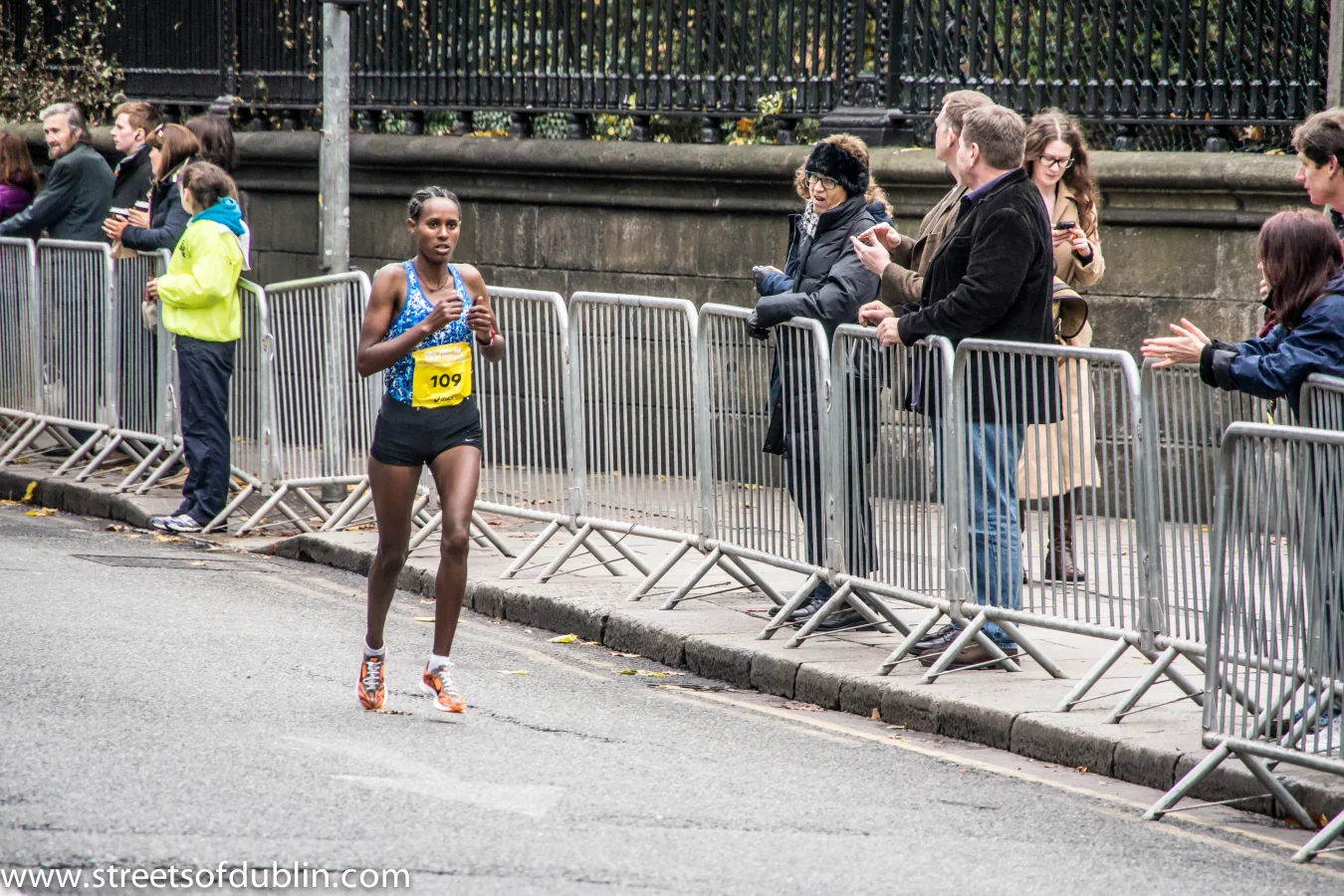
You just finished a great run — a new personal best, a tough long run, or your first 10K. You've got the photo. Now you want to share it with your time, pace, and distance displayed cleanly so your friends, followers, and Strava community actually know what they're looking at.
This guide shows you exactly how to add a pace and distance overlay to any running photo — for free, in under two minutes, with no app to download.
What is a Running Photo Overlay?
A running photo overlay is a layer of text — your pace, distance, time, and run type — placed directly on top of your running photo. Instead of sharing a plain photo with a caption, your stats become part of the image itself. It looks clean, professional, and immediately communicates your achievement. Our How to Add Speed and Route Overlay to Your Cycling Videos guide covers everything you need to know.
Think of it as the fitness equivalent of a score graphic on a sports broadcast. The data is right there in the frame.
💡 Quick tip: Running overlays perform significantly better on Instagram and Strava than plain photos because they give viewers instant context — no caption-reading required.
What You Need Before You Start
- A running photo (JPEG, PNG, or HEIC from your iPhone)
- Your run data: distance (in km or miles), total time, and run type
- A browser — that's it
You don't need to install anything. PaceOverlay runs entirely in your browser and works on iPhone, Android, and desktop.
Overlay Your Running Stats
Add your pace, distance, and heart rate to your running photos and videos — share your stats the way the pros do.
Try PaceOverlay Free →Step-by-Step: Adding Your Overlay
Step 1:Upload Your Photo
Go to PaceOverlay Image Overlay and click "Upload Image". Select your running photo. The editor opens automatically and shows you a cropping canvas so you can frame your photo exactly how you want it.
Use the zoom slider to get the right crop before moving on. This step locks in your composition.
Step 2:Enter Your Run Stats
Below the canvas you'll see input fields for:
- Distance — enter your total distance in kilometers
- Time — split into hours, minutes, and seconds
- Run Type — pick from Easy Run, Long Run, Tempo, Race Day, and more
PaceOverlay automatically calculates your pace per kilometer from your distance and time. You don't need to work it out yourself.
Step 3:Adjust the Overlay Position
Click Next and you'll see a live preview of your photo with the overlay applied. Use the sliders to:
- Scale the overlay larger or smaller
- Move it left, right, up, or down
The goal is to place the overlay somewhere it doesn't cover the key part of your photo — usually the bottom third works well for most running shots.
Step 4:Download and Share
Hit Download. Your image saves as a full-quality JPEG with no watermarks. Share directly to Instagram, Strava, Facebook, or wherever you post your runs.
Tips for a Great Running Overlay
Choose a High-Contrast Background Area
The overlay text is white, so it shows up best over darker parts of your photo — a road, shaded path, or dark running kit. If your photo is very bright, use the shadow toggle in Step 3 to add a drop shadow behind the text for readability.
Crop Vertically for Instagram Stories and Reels
The image editor uses a 4:5 crop by default, which is ideal for Instagram feed posts. For Stories, aim for a taller crop if your photo allows.
Use "Race Day" for Your Best Efforts
The Run Type label adds tone to your post. "Race Day" alongside a sub-5:00/km pace reads differently than "Easy Run" — and your followers will know what kind of effort they're looking at.
Frequently Asked Questions
Is it really free?
Yes. The image overlay tool is permanently free. No account required, no credit card, no watermarks — ever.
Does it work on iPhone?
Yes. Open PaceOverlay in Safari on your iPhone, upload your photo, and download the result. On iOS, the image opens in a new tab — long-press it and tap "Save to Photos."
What formats does PaceOverlay support?
JPEG, PNG, and HEIC (the default iPhone photo format). Output is always full-quality JPEG.
Can I choose a different template?
The free plan includes three templates. The Pro plan ($9.99/month) unlocks all 25 templates with different styles, colors, and layouts.
Conclusion
Adding a pace overlay to your running photos is one of the easiest ways to make your running content more engaging and shareable. Your stats tell the story — make them visible. With PaceOverlay, the whole process takes under two minutes and costs nothing.
Next time you finish a run and take a photo, don't share it plain. Add your overlay and let your numbers do the talking.